I’ve been perfecting my backup strategy for a long time, and now, I think that it’s ready to be shared with the world!
Backing up Apple devices
I own one iPhone and one MacBook Pro.
The MacBook Pro runs both MacOS and Asahi Linux in a dual-boot fashion. In this section, I’ll talk about the MacOS partition.
Backing up iOS devices
For iOS backups, I just have an iCloud subscription. I’m paying about 120 EUR/year for this service.
I enabled Family Sharing, which allowed me to share my subscription with family members.
It makes the 10 EUR I pay every month hurt a little less.
Pros
On the plus side, backups happen by themselves, over the network. There is nothing you need to do to make it work.
Just, maybe, note down some kind of recovery key or add an emergency contact. (This reminds me that I should probably do that.)
It’s reasonably secure, with E2EE available (you need to enable Advanced Data Protection).
Cons
On the con side, you can’t really open iCloud in Firefox, grab your iPhone’s backup and grab your text messages.
There is some progress on making it possible to sync iCloud Photos using rclone, though.
It would be nice to be able to download them in the background as regular files.
Other than that, backups on iPhones are flawless. I just expect to be able to throw my iPhone in the water, go to the Apple Store, get a new one and have everything there except maybe the data from the last 3-4 hours.
Backing up MacOS with Time Machine
I have a MacBook M2 Pro. It had a really rough life.
Early in its career, it got a bad case of flu and the motherboard died. Thankfully, it was still under warranty and I could get it fixed by Apple for free.
However, 3 weeks ago, it jumped from the table and broke its screen. Sadly, it’s not covered by insurance anymore, so I’ll have to figure something out by myself. I am sad about it since someone figured out 120Hz support for this machine on Asahi Linux and I really wanted to give it a try.
Pros of Time Machine
I really love Time Machine for one thing: if your laptop dies, you can go to an Apple Store, get a new one, and be up and running with the exact same workspace in the afternoon. Everything gets saved, and when you restore it on a new laptop, everything is there where you expect it to be.
It’s exactly the same as an iPhone except that backups are somewhat manual. You need to buy an SSD, connect it, make sure that backups are running… I wish it happened in the background and was uploaded to the cloud. This is 100% possible with current technology, so I am not sure if that’s not already the default.
About the first time the motherboard died: well, I left it in my motorcycle for a few hours at night in a place with high air humidity. When I opened the laptop the next day, it was a bit watery.
I didn’t think much of it.
After a few days, it started behaving weird. Two weeks later, it was dead.
Thankfully, the warranty was still valid (3 days left!), and I was 30 minutes away from an Apple store. They accepted to replace the motherboard for free, but it would take a week and I would lose all my data.
Still, I needed to work. The world wouldn’t spin without me. I ended up renting a really crappy MacBook Air from the pre-historic era for super cheap.
It was incredibly slow, but after restoring from my HDD, everything was there. SSH key, passwords, browser history, etc.
I was on-call for the product I was running at the time, and having Time Machine saved me a lot of money.
I know. I could’ve just taken better care of my machine. I do now have a better case to protect it. But still… I believe that having Time Machine saved me at least a thousand dollars in actual sales that I would’ve lost with one week downtime.
This is not even accounting for personal factors, such as: coworker satisfaction, stress, the value of my files.
However, Time Machine is not perfect…
Cons of Time Machine
Time Machine is quite slow, hard to debug, and also, totally somewhat incompatible with other OSes.
Let’s start with compatibility.
It’s hard to read the data from the hard drive from other OSes
As I said, my MacBook Pro died again, jumping from a table this time. I have backed it up on a HDD.
To access the data, I can:
- Buy a new MacOS device and restore the backup from the HDD
- Repair the screen. That’s probably what I will do this time
- Run some random scripts from GitHub to mount it and copy the data
Okay, while researching, I kind of figured out that it wouldn’t be sooo hard.
So, I tried to get my Time Machine HDD to mount on Linux.
First step was installing apfs-fuse.
I looked at the AUR and found apfs-fuse-git.
Mounting didn’t work, at first. Looking at GitHub issues helped to figure out the right parameters to use.
Here’s how my session looked:
cami@onigiri ~/c/apfs-fuse (master) [SIGINT]> sudo apfs-fuse -o uid=$(id -u),gid=$(id -g),allow_other,snap=150163,vol=1 /dev/sda1 ~/mnt/time-machine
Volume SuperElements is encrypted.
Hint: <redacted>
Enter Password: <redacted>
WARNING: extentref tree init failed
WARNING: snap meta tree init failed
That’s pretty much it, it took a little bit of fumbling around, but in the end, I could access my data.
Okay, I can see my files from Linux, so I can’t really complain too much.
It’s hard to debug when it doesn’t work well
One day, my backup HDD died and I had to buy a new one. It was not super obvious why the backups were not working well.
It was just super slow. I investigated a little and figured out that the HDD must’ve broken when traveling.
(I learned my lesson: HDDs and checked luggage don’t get along very well. That’s the reason I only buy rugged SSDs and take great care of them).
It requires an APFS-only drive
On APFS, Time Machine can share a drive with regular files using separate volumes. However, that drive must be using APFS. It’s not possible to naively create a regular APFS partition on a regular drive and use that for backups.
I wanted to back up my wife’s 512GB laptop on my 4TB SSD since there was a lot of space left on it, but that’s not possible.
It’s really hard to set up backups to the cloud
There are people who back up their MacBook to an Apple AirPort Time Capsule which is basically an Apple NAS.
It’s been discontinued, now.
There is an option to sync your Desktop to iCloud, but it’s insanely buggy. Totally messed up my installation at some point and had to start over.
I even gave up on recovering some files from iCloud. They’re here, they just don’t download. I think this is because I left storage optimisation on.
But what if you just want to back up to a cheap SFTP server? Or if you want to back up while you are travelling?
When I tried setting something up, it just didn’t work well. I can’t quite remember what went wrong, but it was one of those cases where I just keep trying to force some software to do something it hasn’t been designed for.
Time Machine is just not the right fit for networked backups.
What about Backblaze?
Backblaze Cloud Backup is an option, but in my experience, it’s buggy.
It takes a lot of CPU and the interface hangs randomly.
Maybe it has been fixed, but I wouldn’t bet on that.
Backing up Linux installations
For Linux devices, I have settled on Backrest. It’s a program that wraps restic.
Backrest is a web-accessible backup solution built on top of restic. Backrest provides a WebUI which wraps the restic CLI and makes it easy to create repos, browse snapshots, and restore files. Additionally, Backrest can run in the background and take an opinionated approach to scheduling snapshots and orchestrating repo health operations.
For me, it’s perfect. It’s highly configurable, and solves all the issues that I am having with Time Machine.
I use it on a bunch of servers and on my personal Linux installations.
It can use an SFTP server for data storage. Right now, my data is saved on:
- My 4TB SSD
- A cloud server
I added a hook so that the cloud backup only runs if I’m not on metered Wi-Fi.
Here’s what the hook looks like, in case you’re wondering:
cami@onigiri ~> which wifi-metered
/usr/local/bin/wifi-metered
cami@onigiri ~> cat /usr/local/bin/wifi-metered
#!/bin/bash
# Exits 0 if current WiFi is NOT metered, 1 if metered, 2 if unknown/no wifi.
result=$(nmcli -f GENERAL.METERED dev show \
    "$(nmcli -t -f DEVICE,TYPE,STATE dev | grep ':wifi:connected' | cut -d: -f1 | head -1)" \
    2>/dev/null)

if echo "$result" | grep -q 'METERED:.*yes'; then
    exit 1
elif echo "$result" | grep -q 'METERED:.*no'; then
    exit 0
else
    exit 2
fi
The con is that it cannot restore your desktop exactly how it used to be as seamlessly. If your laptop breaks, you’ll likely spend a few hours getting basic dotfiles in the right place for it to work.
Personally, I think the trouble when restoring is worth the simplicity when backing up.
On that same MacBook that jumped, I was running Asahi Linux, which I was backing up to my SSD.
Now, I could easily dump the filesystem and get back all the data that I had on Linux, and copy it to my ThinkPad.
I cannot say the same about the data that is on my Time Machine HDD though; I needed to jump through a few hoops to read the data.
Backing up Android phones
I also have an Android phone. I have nothing of importance on my phone other than pictures and passwords.
A phone is a portable computer, and it’s made to be lost, broken and stolen. Yeah, it sucks to have a 1000$ device taken from you. However, it sucks even more to loose it when it contains a ton of happy pictures and memories that were not backed up. For me, losing one year of pictures feels like losing one year of my life.
Something else is losing passwords. It’s a huge pain to reset passwords on so many websites.
The rest can go away. I don’t care about various configuration options. Losing a phone is such a rare occurrence that it’s okay if I have to spend a few hours setting up a new one. I don’t mind being logged out of my apps.
For Pixel devices, it’s possible to perform backups if you have a Google One plan.
I am not sure about other manufacturers.
I just don’t trust Google, though. Or rather, I would like to limit the amount of dependency that I have on Google as much as possible, and buying a subscription is not going on the right path.
That’s why I use Syncthing.
My passwords are stored in a simple KeePassXC file. My pictures and this KeePassXC database file get synced to a server that I have at home. I decided to mark this server at home as “untrusted”; no unencrypted data sits on it. Before the data leaves my phone to get on that server, it gets encrypted with a key, which is stored on the KeePassXC file. Needless to say, the KeePassXC file is encrypted as well.
The server at home acts as a temporary data store. When my laptop comes online, it starts syncing the pictures and the password files.
The passwords file goes inside the NVMe drive inside my laptop, while pictures only get stored on my SSD (which is encrypted).
The pictures then get backed up to the cloud (so, there are four copies of my pictures: on my phone, on my server at home, on my SSD and on a cloud server).
To make it faster, my phone and my laptop can sync over LAN. That’s the beauty of Syncthing!
I feel good about my pictures being just files on disk. Well, I still use my iPhone for pictures sometimes, so not all of my pictures, but at least some of them!
FAQ
What if you lost all your devices at the same time?
Well, I would be out of luck. The key to the kingdom is the KeePassXC database, which contains the encryption password for the online restic repository.
I am still figuring this out. I see two options:
- Uploading my KeePassXC file somewhere with a strong encryption password. E.g. uploading it to this website.
- Giving my KeePassXC file to one or two friends and asking them to keep it safe for me; then asking them periodically to send it to me to prove that they are still holding on to it.
I am not perfectly satisfied with either option.
Even if the data is encrypted, I don’t like having it online in the first place. I also don’t like bothering family & friends with this.
How do you know if your Backrest backups are running well?
I am using Beeminder with Backrest hooks on snapshot success. This could be an article of its own, so I won’t talk about it too much, but basically, if the backup doesn’t run, it won’t add a datapoint, and if I don’t fix it I’ll have to pay money.
This is the approach I use for production servers, and it works really well. I can sleep easy at night knowing that my backups are not failing.
Alerting in general is a bit tough, for example, I don’t have anything that tells me if Syncthing is not synced well.
It doesn’t look like a problem right now but I’m considering implementing alerting for Syncthing as an upgrade to this system.
I agree, but I keep postponing setting up backups…
I understand. There are a lot of little actions that need to be performed over a long period of time to extract value from backups.
For example: Time Machine requires your drive to be plugged in to start.
Unless you use an SSD/HDD on a daily basis, you won’t naturally plug it in. Or if you do, it will be inconsistent. Some months, you’ll have daily backups, some others, you won’t have any.
To solve this, the only thing that has been effective is Beeminder.
I previously created a Beeminder goal that requires me to back up my laptop with Time Machine every week.
Similarly, I currently have a Beeminder goal that requires me to “improve my backup setup”. For example, the last action I performed regarding this one was to set up pictures backup to my cloud server.
You just have to go about it bit by bit! The ideal first step would be to set up a Beeminder goal similar to mine, that requires you to make incremental improvements. However, if you’re not into that kind of thing, you can simply order a good 4TB SSD. Chances are, you’re running out of storage and you could use some extra space.
For example, you could use it to also store movies that you download, and then play them on the smart TV of your hotel, without having to resort to HDMI cables. Just an idea :) !
What SSD should I use?
I am using this one.
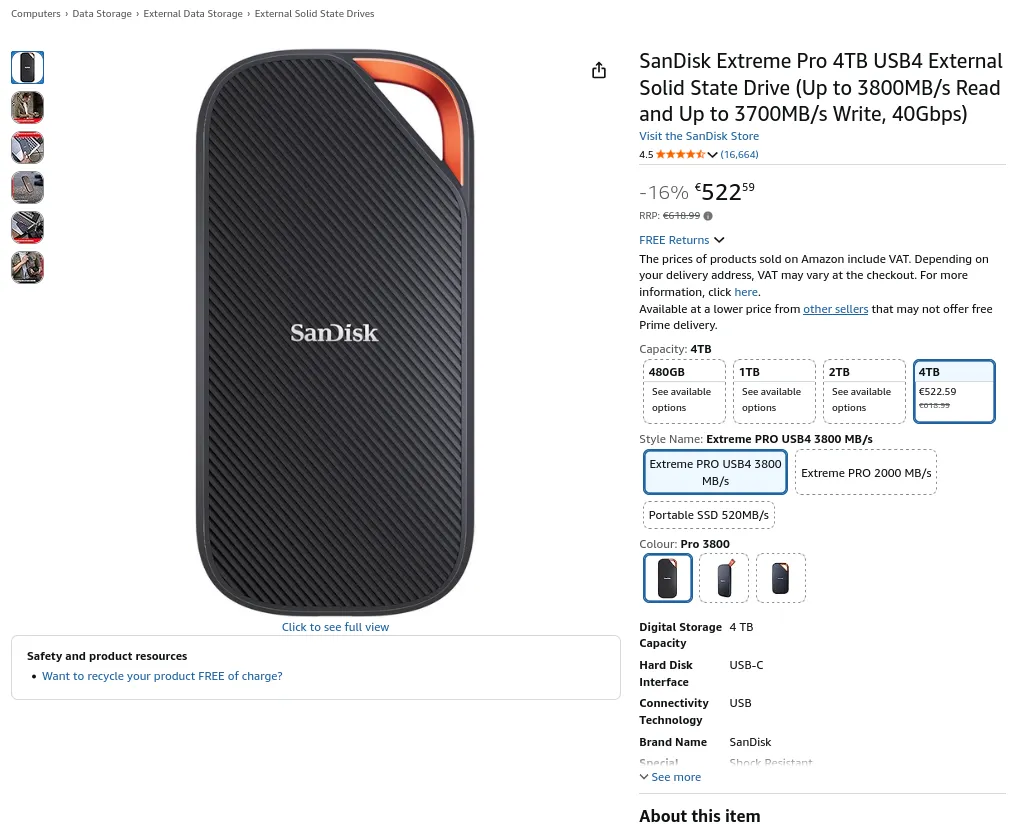
It’s been a joy to use. It does cost 600$ which is the price I paid for the laptop I am typing this article on.
Two things to take into consideration:
- You probably don’t need 3700 MB/s
- You probably don’t need 4TB
I am not even sure if it can really reach 3700 MB/s. Let me test it real quick using KDiskMark…
The benchmark wouldn’t even start with a small cable. When I switched to the stock cable that was given by the SSD manufacturer, I got the right results:
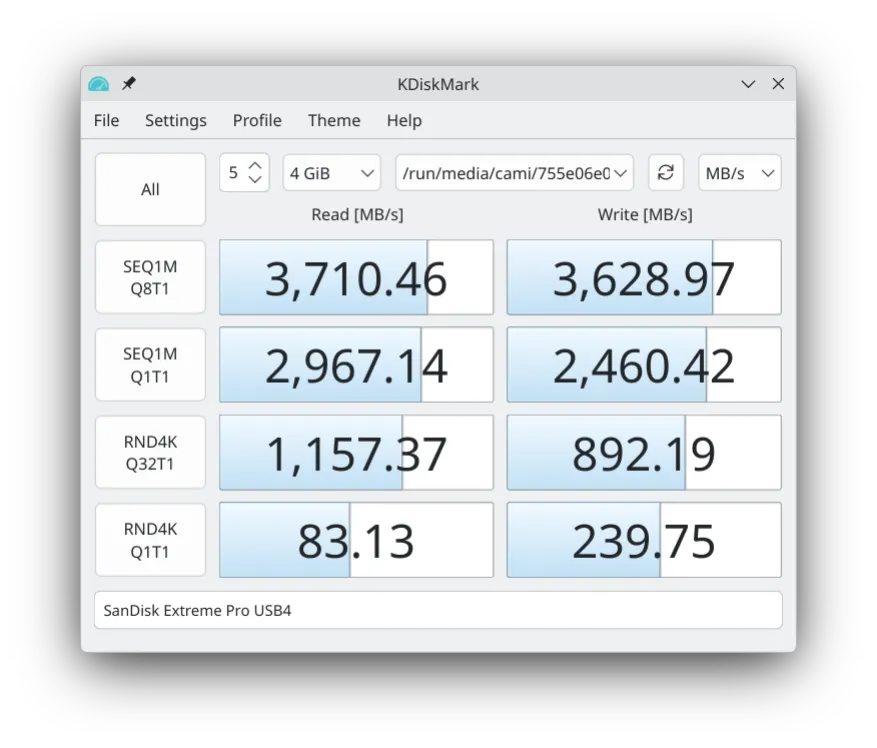
That’s equivalent to a PCIe 3.0 SSD. Quite good for a USB device! You could practically boot another Linux distribution and run it from there.
What cloud provider should I pick?
I am personally using Hetzner’s BX11 Storage Box, which costs 3.20 EUR/month.
I have nothing particular to say about it other than it’s cheap, and it works.
I like to get a fixed monthly bill; I could instead use S3 (Object Storage), but then I would potentially get surprise bills if I configured something wrong somewhere.
The good thing with Backrest/restic is that it’s pretty much provider agnostic! It has a rclone backend, and rclone allows connecting to a lot of cloud providers. This means that you have a lot of choice!
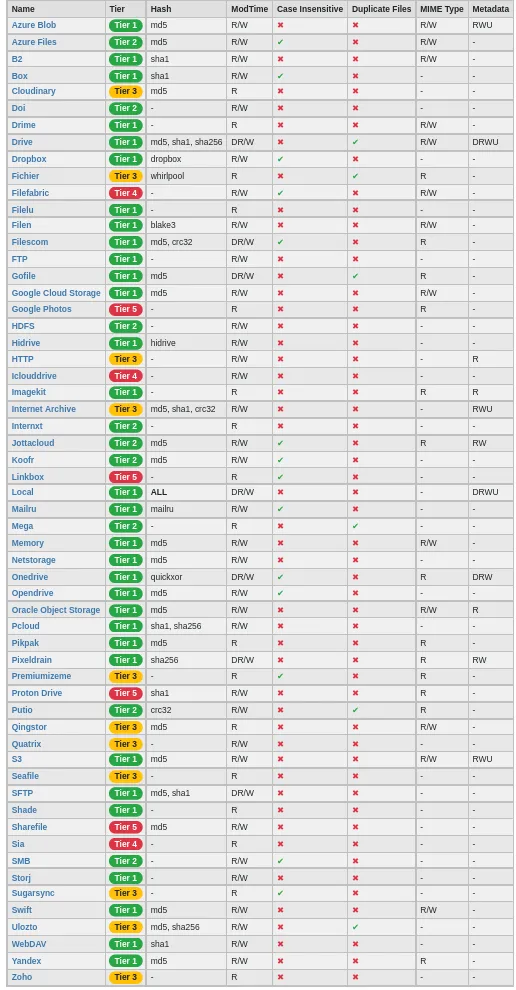
By the way, I can’t wait for Apple Photos support so that I can sync my iPhone pictures and back them up independently.
What about servers?
Backrest + Beeminder works well for this use-case as well. Just make sure to store the backrest config file somewhere safe.
Ideally, pick a repository on another cloud provider in case your whole account gets frozen / shut down.
Conclusion
I know, right now, you have something more important to do. You’re busy, you’re tired. SSDs cost money. You’re perfect and will never break anything, and you’re very careful and nobody will steal from you.
Despite all that; think about your future self. Stuff happens all the time. You really don’t want to be in a position where you lost an expensive device and also lost priceless data.
I’ve broken, lost, and gotten my phone stolen multiple times. (I also managed to steal my phone back, which is a story for another time)
It’s like health insurance. You can’t really feel the need for it right now. You have to force yourself to do it. By the way, if you don’t have basic health insurance, it’s a good moment to reflect on that as well. One way to know if I care about you is if I ask you to backup your stuff and to get health insurance :).
Treat your devices like cattle, not pets.